
AUTOMATED THERMAL INSPECTIONS · CAPTURE AND REVIEW
For occasional thermal inspections, a team can bring a Matrice 4T to the site. For repeated checks at the same place, consider a Matrice 4TD with Dock 3. The main difference is how the drone is deployed and recovered. People still review the images and decide what needs attention.
Compare the inspection routine
Matrice 4T
A visiting inspection team
Consider this option when the job changes location or runs occasionally.
Matrice 4TD
A repeat inspection at the same site
Consider this option when the same assets need a regular capture and review routine.
Original editorial comparison. Published model and workflow details: [M4-FAQ] [D3-SPEC] [FH2-PLANS]
Updated 14 November 2026 · Ireland

Technical Director · Irish Drone
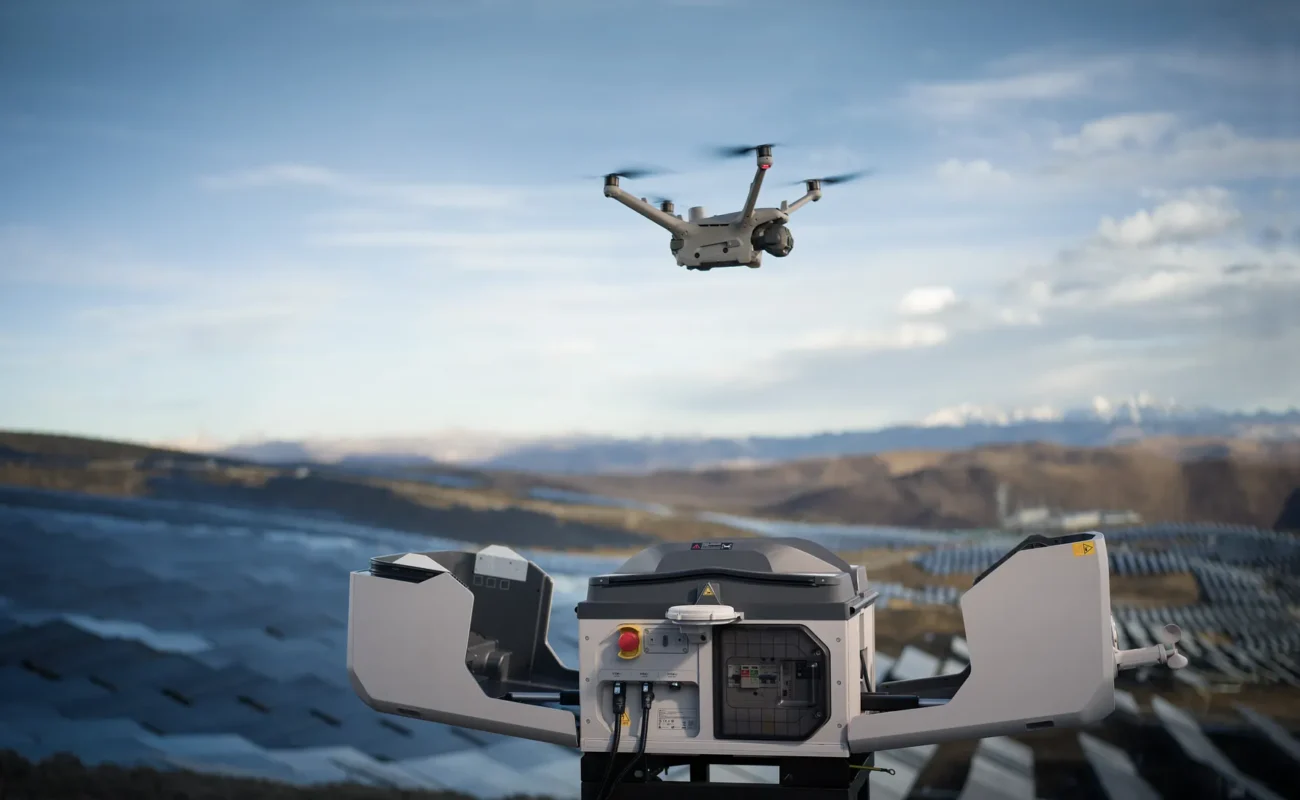
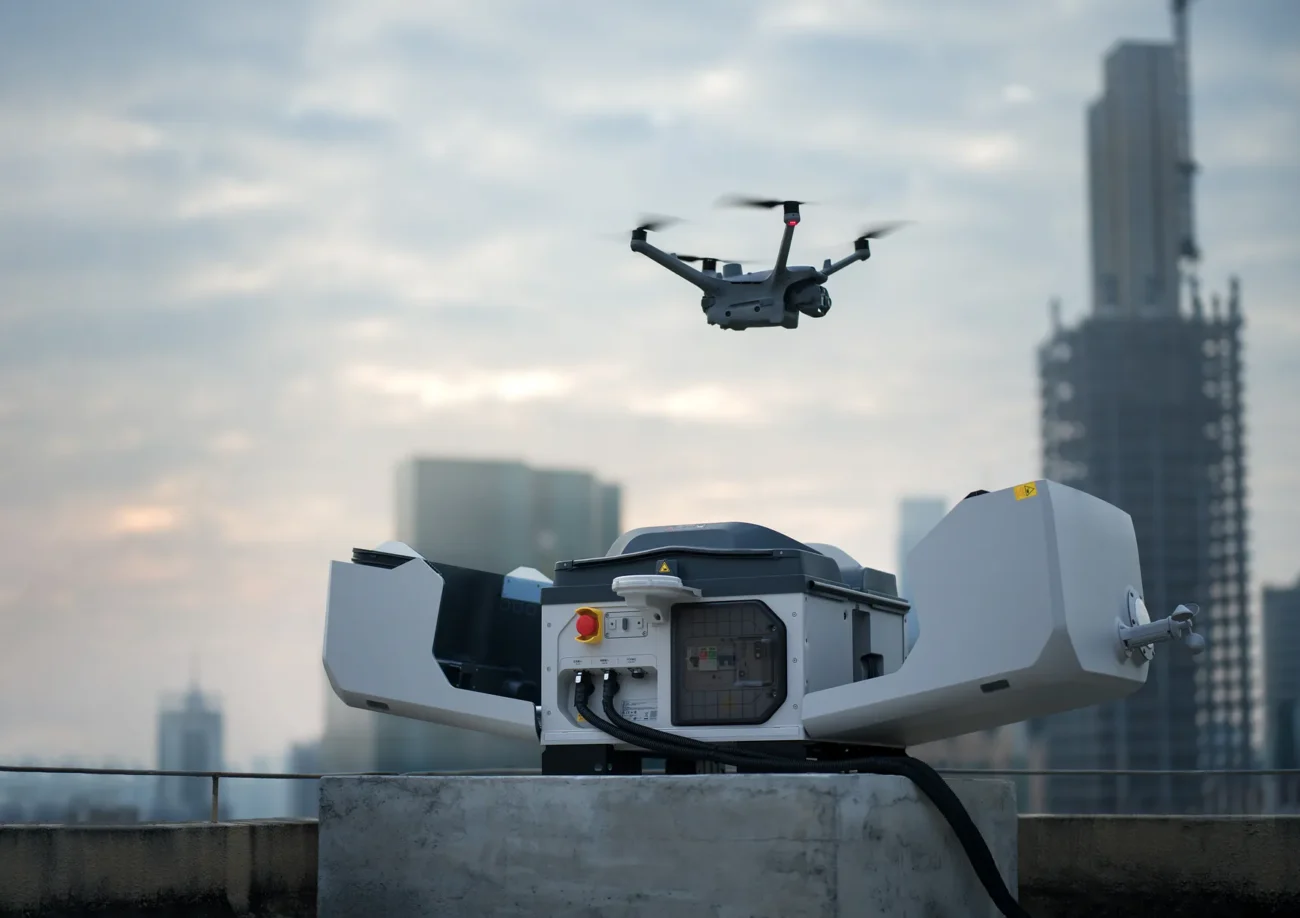
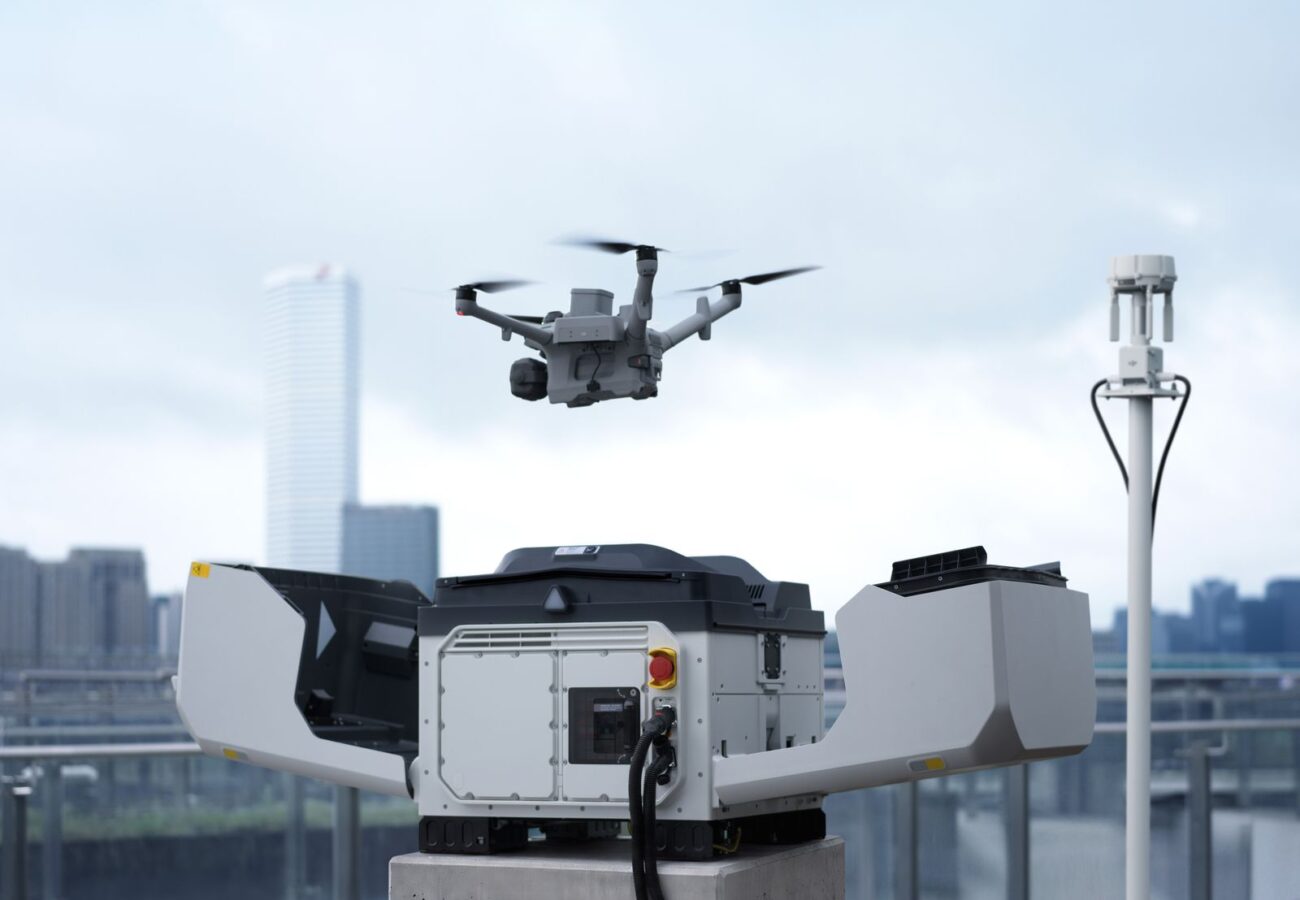
Header — Official DJI Media: Dock 3 at a photovoltaic site in DJI’s deployment photograph. Photo: DJI / DJI Europe. Source and Media Use licence.
A visiting thermal team or a drone based on site?
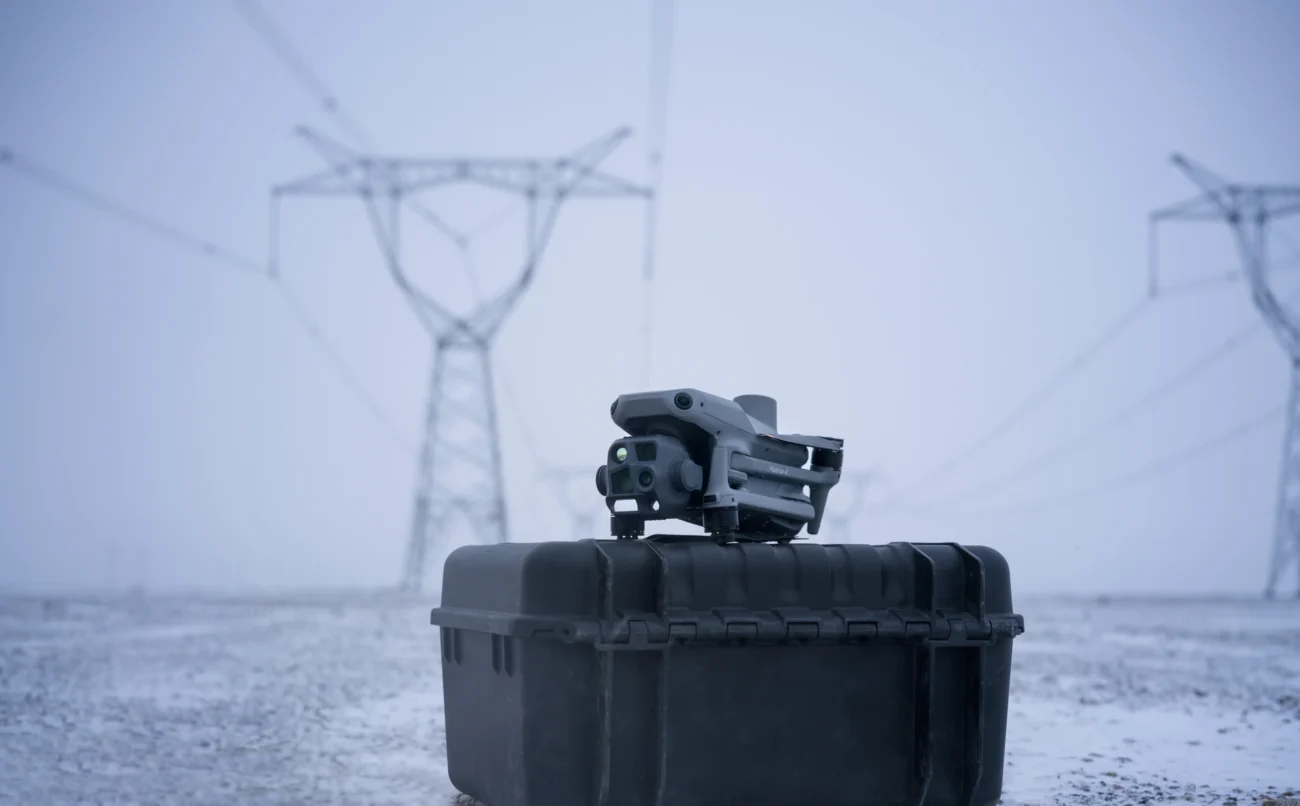
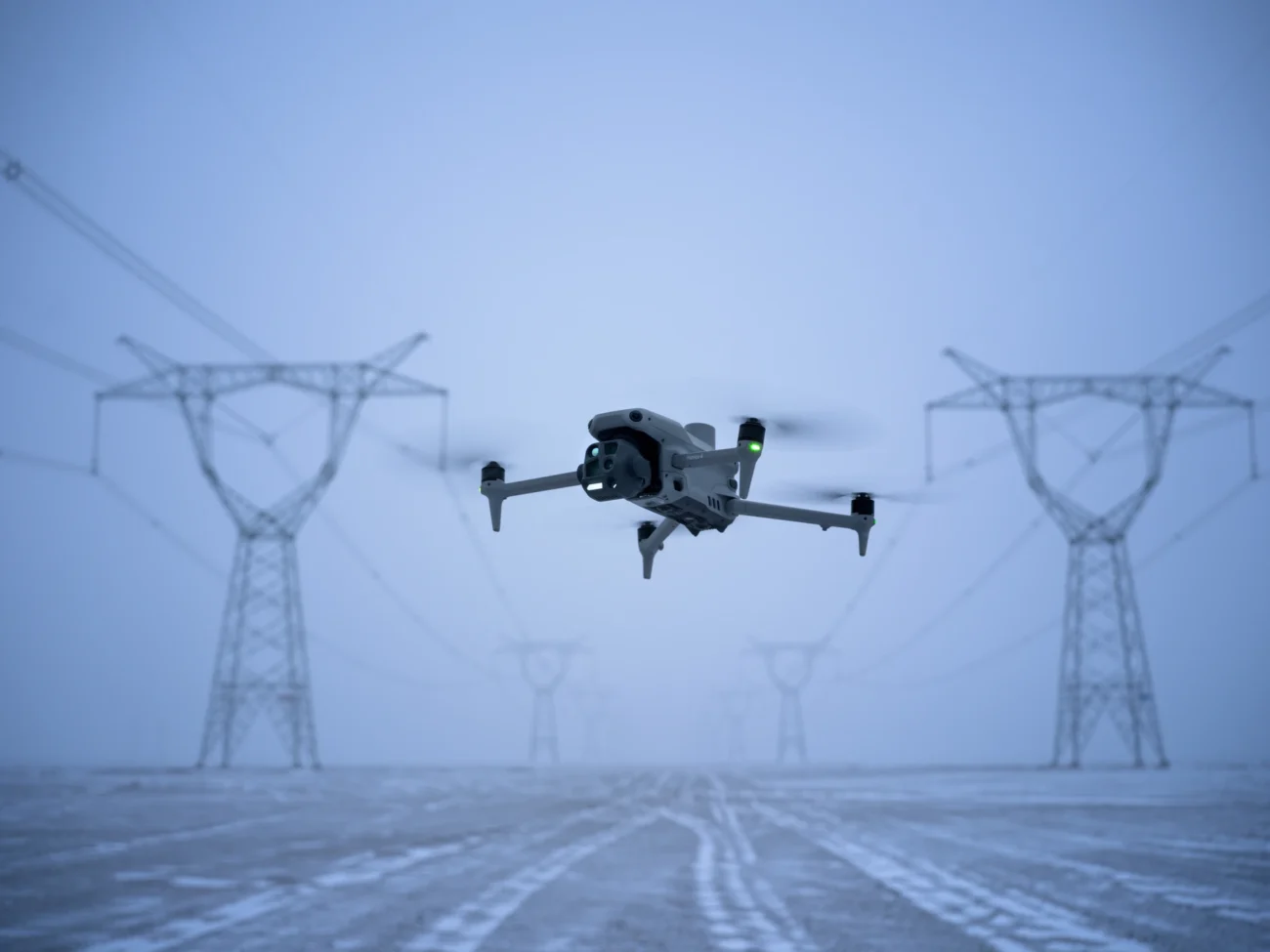
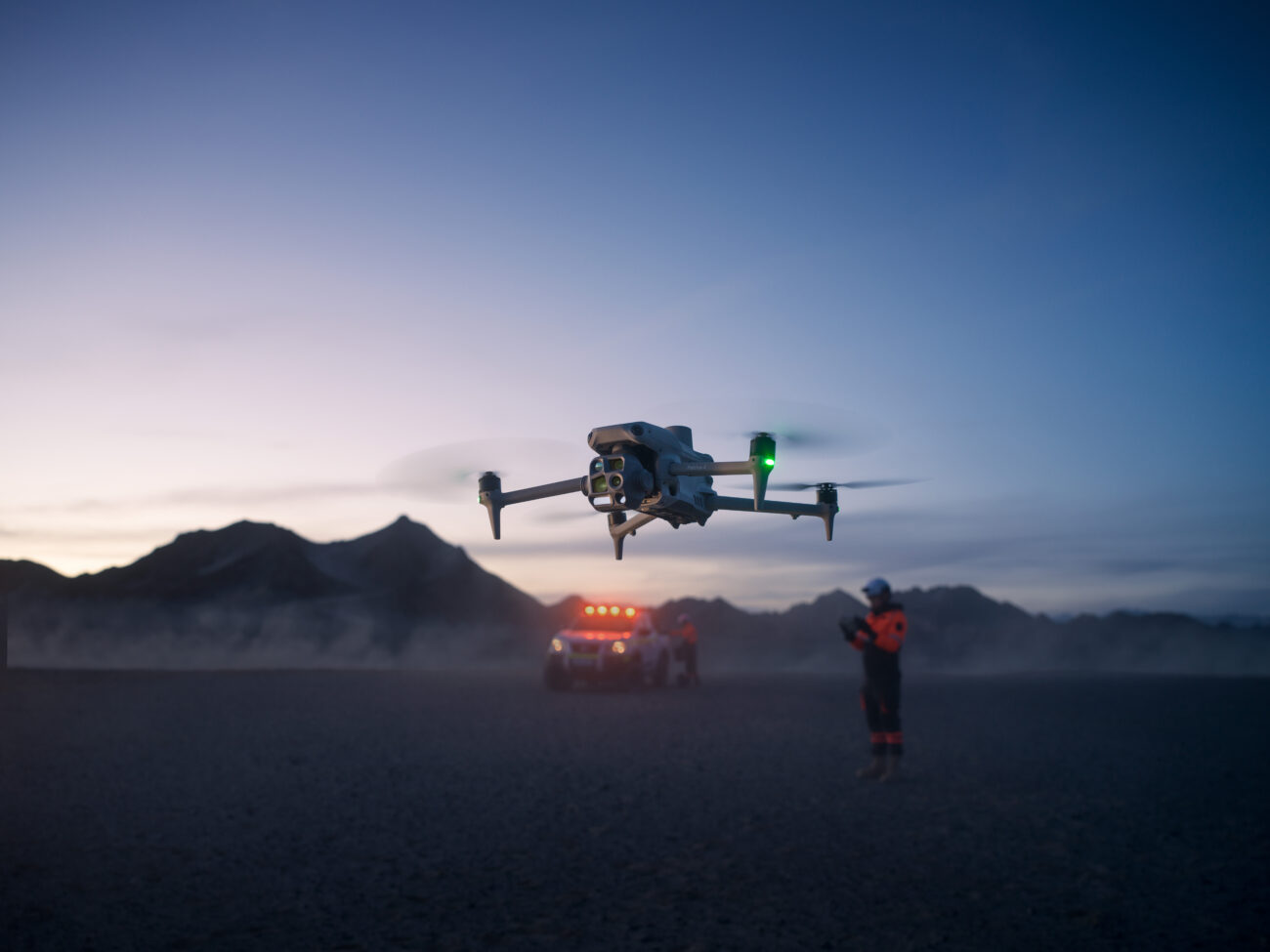
A visiting team brings the aircraft, controller and batteries, completes the job, then packs up for the next site. The 4T can follow prepared routes in Pilot 2, so a visiting kit is useful for planned inspections as well as direct control. [M4-FAQ]
A Dock-based setup keeps a 4TD at a prepared base for repeated work. It is worth considering when the same outdoor equipment, roof or solar array needs regular checks.
Choose around the repeat job. Occasional visits or changing locations often suit a portable team. A site needing the same views regularly is a stronger reason to install a base.
Solar farms: make each hot area easy to find again
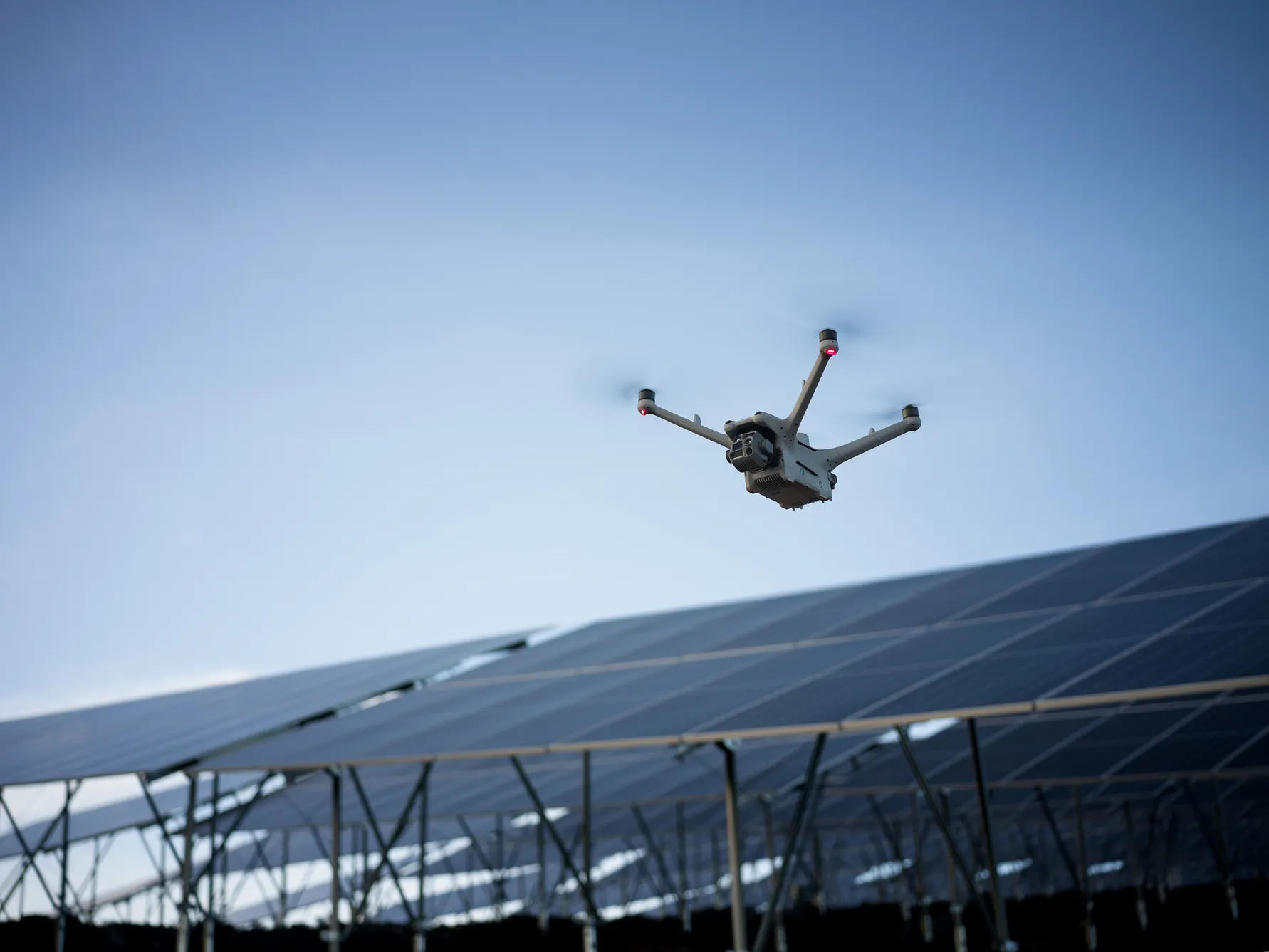
For a large photovoltaic site, agree a simple asset naming system with the maintenance team before the first round. Use the site’s row, string and module references where available. A thermal observation is much more useful when the team can locate the same panel on the ground.
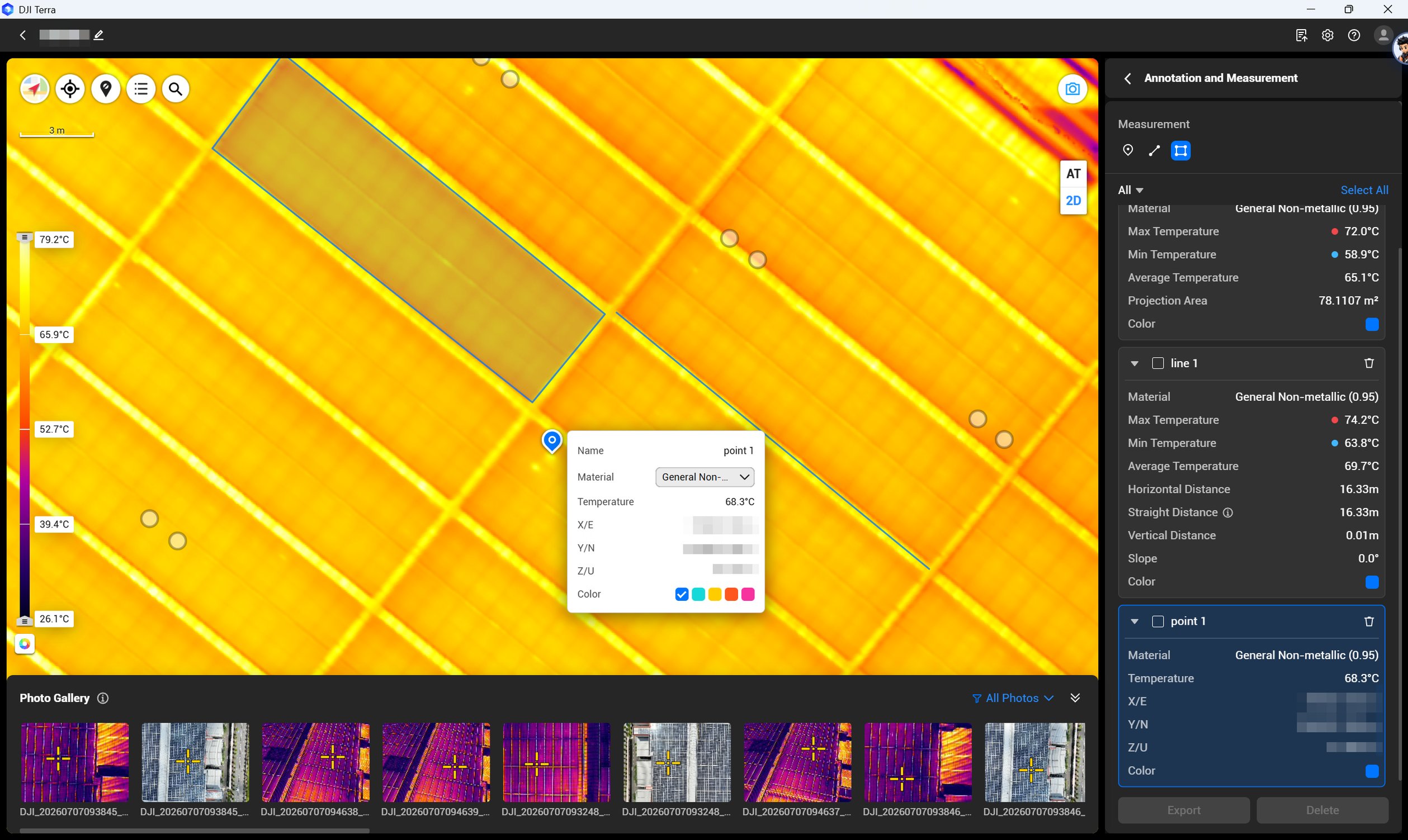
For a panel that needs a closer look, keep a wider normal photograph showing its position, a clear detail view and the matching thermal original. Note the sunlight, wind and operating condition for the round. These notes help the reviewer decide whether a changed pattern deserves a maintenance visit or another look under more comparable conditions.
Plan a follow-up after any work on that asset. Keep the earlier and later observations together, with the conditions noted. Use the thermal pattern to direct attention; let the maintenance team confirm the cause and record what was done.
Wind farms: agree exactly what the drone will inspect
A wind farm spreads the work across access tracks and separate turbine locations. Start with a list from the site maintenance team: which external areas need normal photographs, which accessible targets need thermal views, and what a useful close-up should show.
A photograph of the tower or nacelle exterior answers a different question from a thermal view of a specified electrical asset. Do not treat one thermal pass as a complete turbine condition survey, or assume it reveals faults hidden inside the nacelle or blade. Match each view to a question the reviewer can actually answer.
Group the agreed targets into practical launch sections and coordinate the visits with the site operator. Recheck the route when access, equipment or the working area changes. The pickup, vehicle mount, Dock 3 and 4TD setup is worth considering when the team repeatedly works through a large site from several launch stops.
Plan the equipment for repeated thermal visits
Compare equipment for the required thermal tasks and repeat visits.
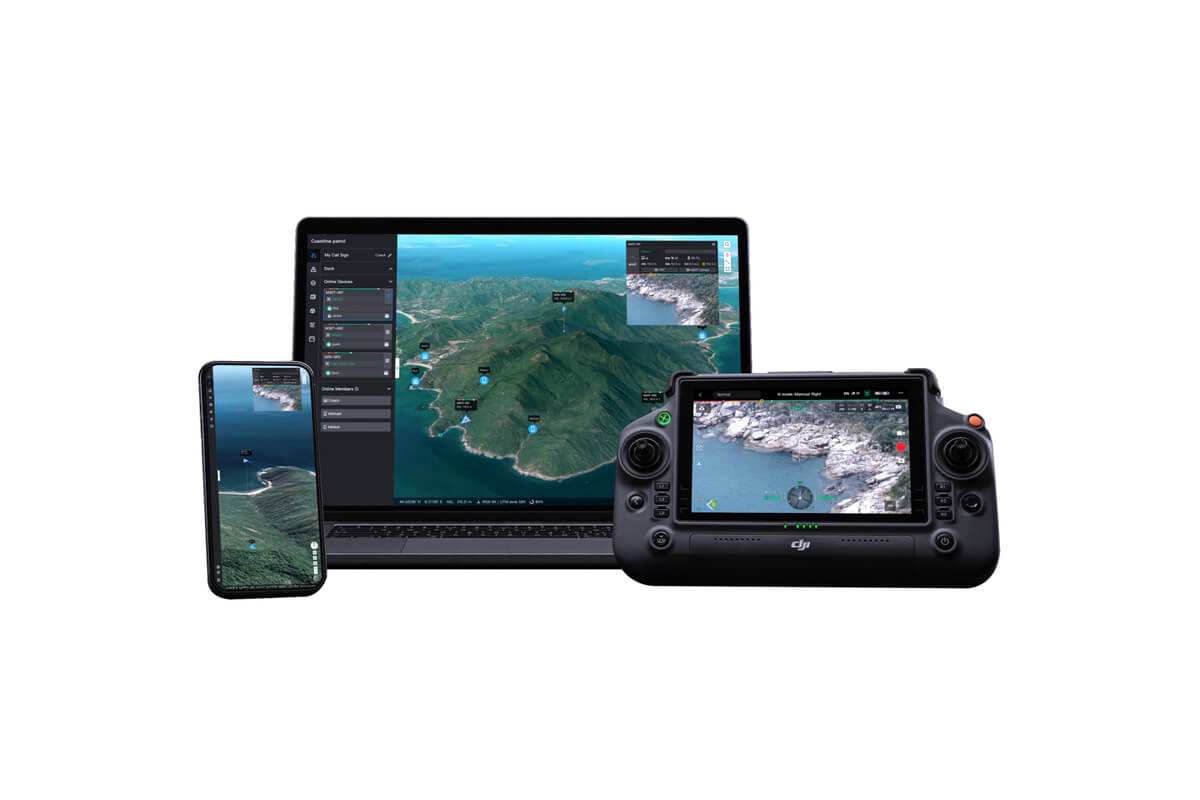
Make each thermal visit worth comparing
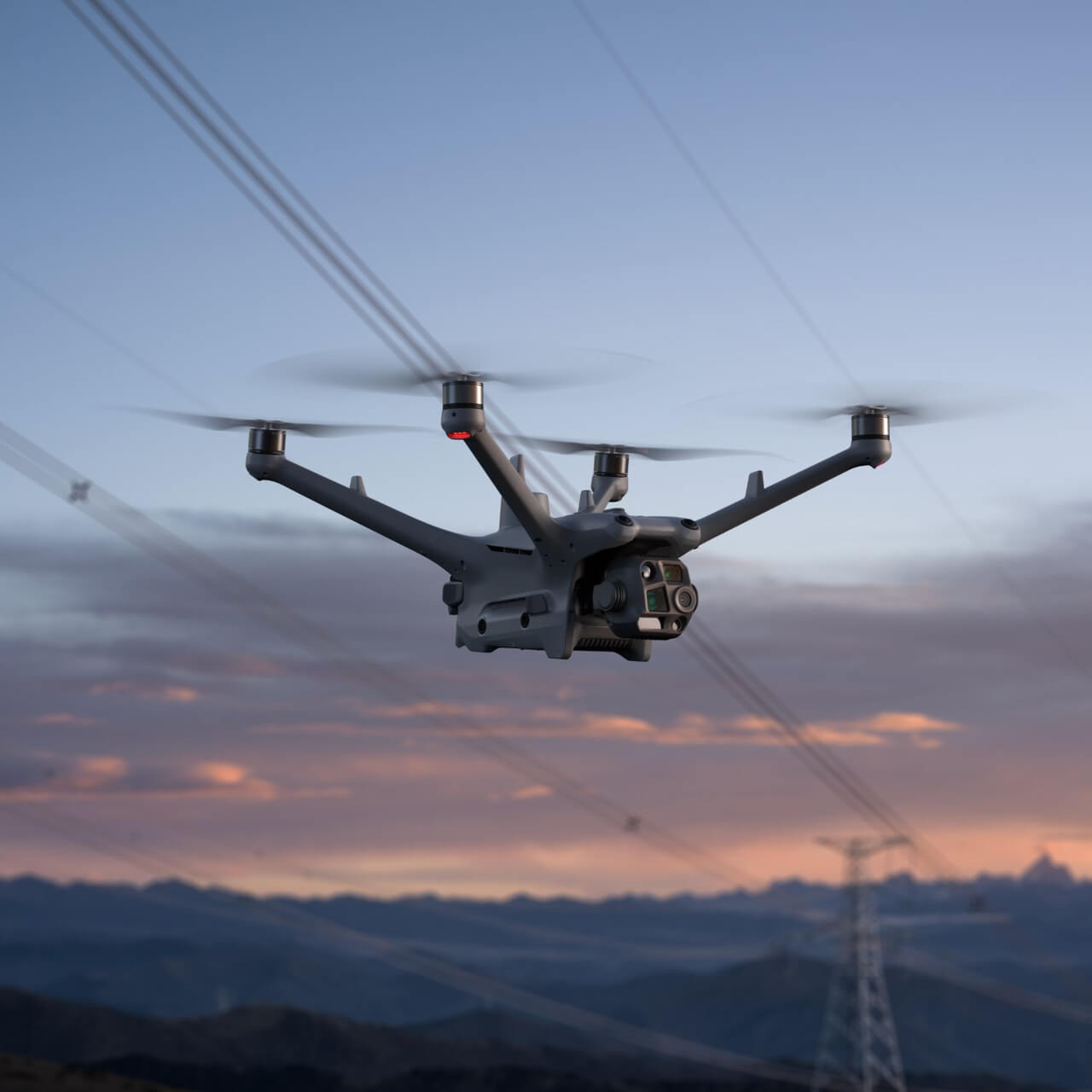
Start with an asset list and the views needed for each item. Keep a normal photograph for context beside its thermal record. Repeat the useful angle and distance where practical, so the reviewer can recognise the same part on a later visit.
Record changes in sunlight, wind, equipment use and camera settings that could explain a different heat pattern. Choose observation times that suit the inspection question. A bright area deserves review; it does not establish a fault by itself.
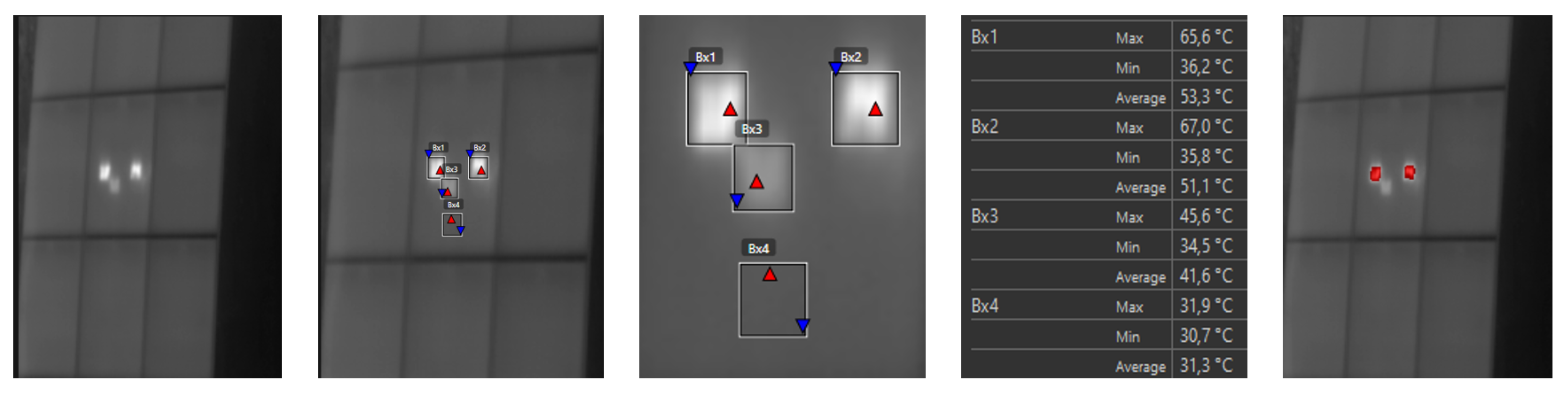
A published photovoltaic thermography example is available in the independent research reference under Sources.
What Dock 3 and FlightHub 2 do
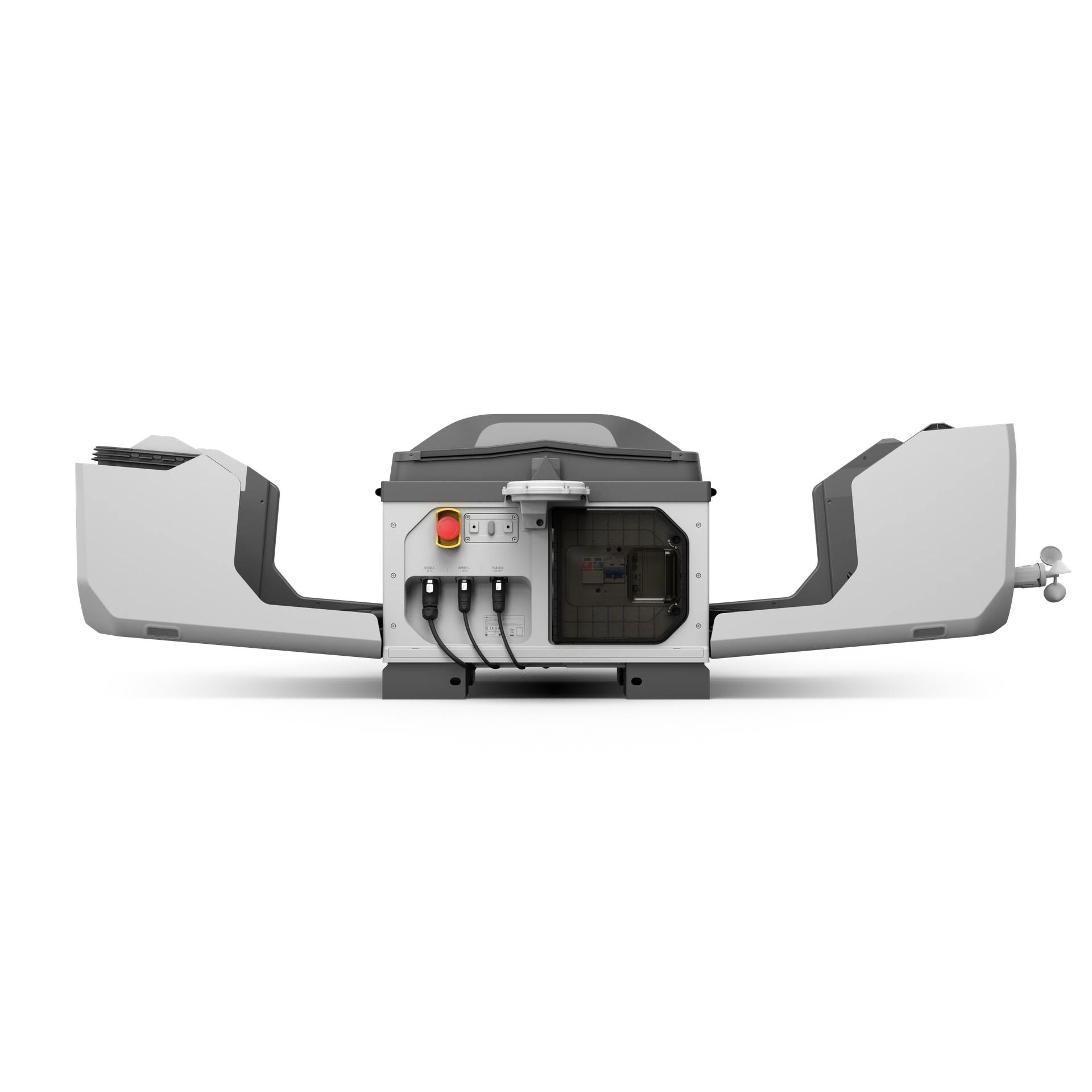
The base needs a suitable landing location, power, a network connection and practical access for site checks. Prepare the route and the required views before arranging repeat tasks.
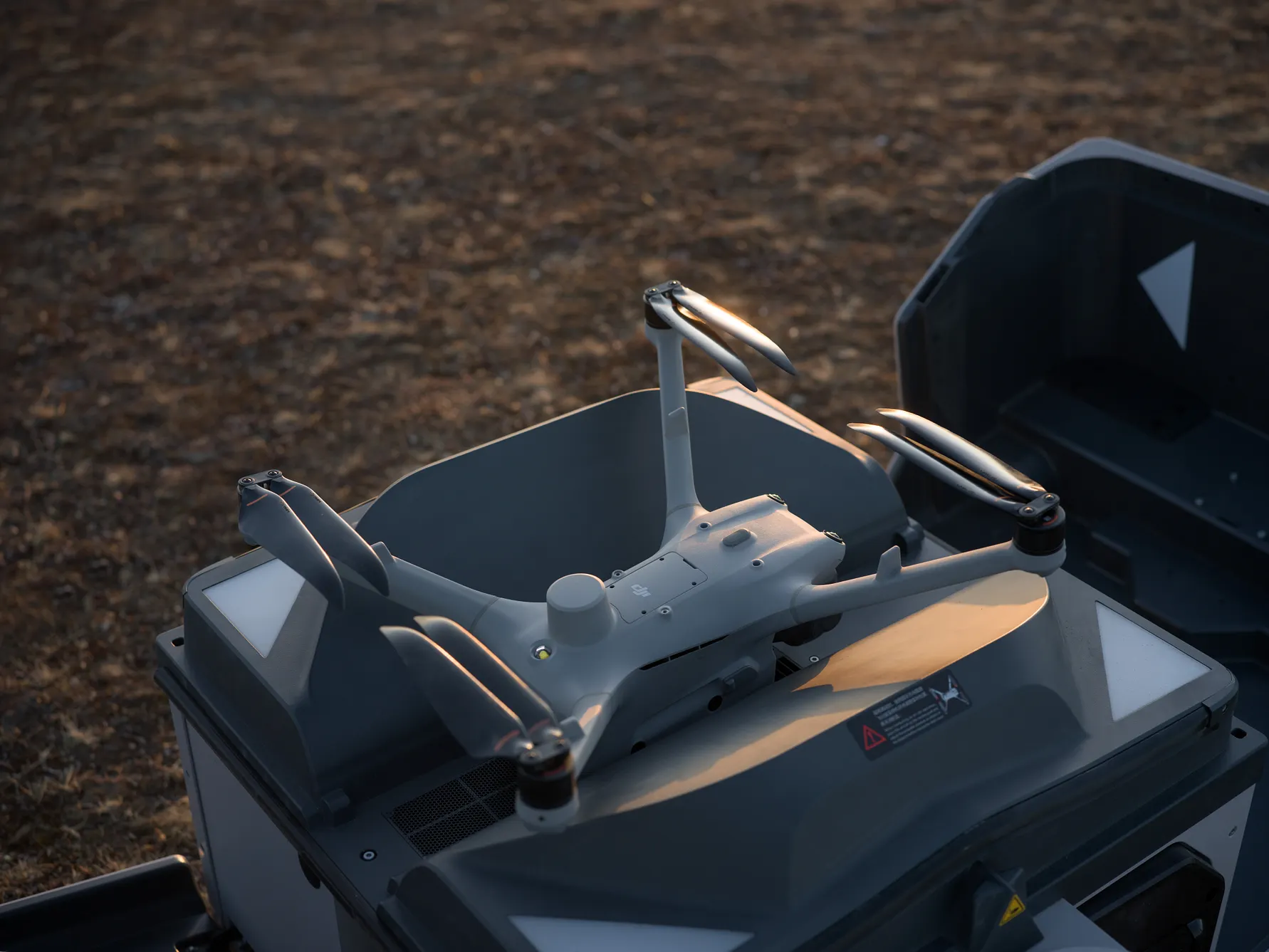
Use FlightHub 2 to choose the Dock and route, arrange the task and monitor the aircraft and live view. [FH2-PLANS] [FH2-VIEW] The team checks whether the returned files cover the job and whether another visit is needed.
Agree who can attend if the landing area changes or the base needs attention. Have the operator confirm the flight arrangements and permissions for that site before starting a routine service.
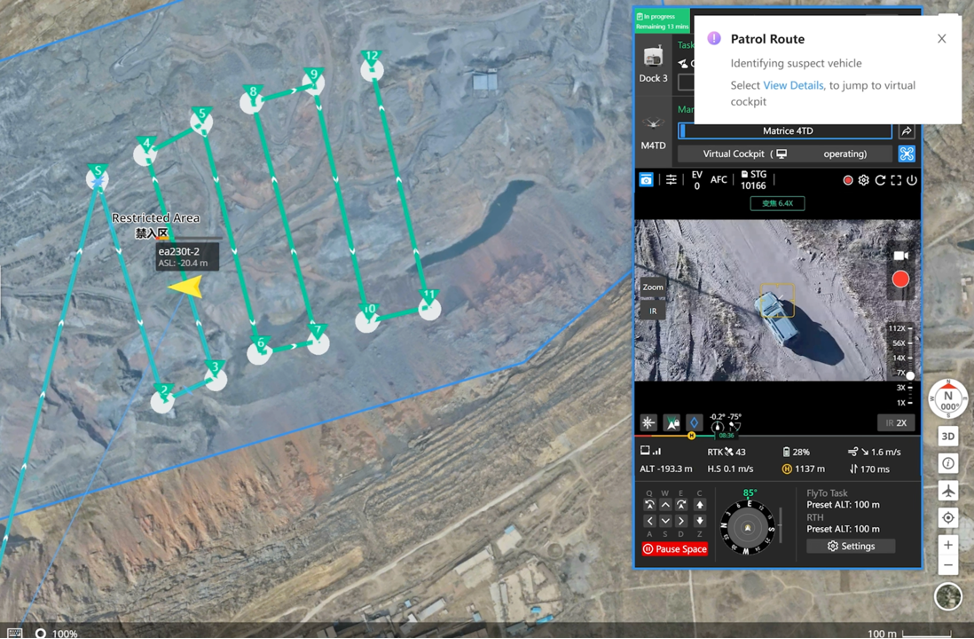
Watch the official DJI Tutorials intelligent-flight-route video. This manufacturer tutorial illustrates the workflow; it is not an inspection acceptance record.
Plan task capacity and the full monthly cost
Charging: 27 minutes (15–95%, aircraft off, 25°C). [charging conditions] This is not guaranteed in other conditions. Dock 3 does not automatically swap batteries. [battery replacement]
Use our editorial calculator to plan capacity and costs:
- Enter site-trial flight and recharge times.
- Include pre/post-flight durations.
- Account for available hours and non-overlapping weather/maintenance downtime.
- Specify the number of Docks/sites, operating days and required visits.
- Calculate actual monthly costs using the same VAT basis.
- Include remote oversight, image review, software, connectivity, electricity, maintenance, insurance/training and capital allocation.
Enter software/licence costs separately; confirm any quoted bundle. Compare the same required deliverables. Tasks outside capacity remain in the manual fallback allowance. Capacity and cost outputs are planning estimates only.
Open the capacity and cost planner
Dock inspection capacity and monthly cost planner
Enter your programme and site-trial figures. Compare the same inspections and deliverables. All fields start blank; enter zero explicitly where a cost or downtime is zero. Use one consistent VAT basis.
This is a planning model. It does not establish flight permissions, safe operating conditions, guaranteed availability or a promised saving. Capacity is a fleet total; it does not assign routes or prove that each site can be served.
Result from your inputs
Tasks beyond this planning capacity retain the entered manual cost. Retained manual fixed costs are included separately. Review weather clustering, site access, scheduling, battery condition and actual task quality before committing to a programme.
Turn the images into a useful maintenance record
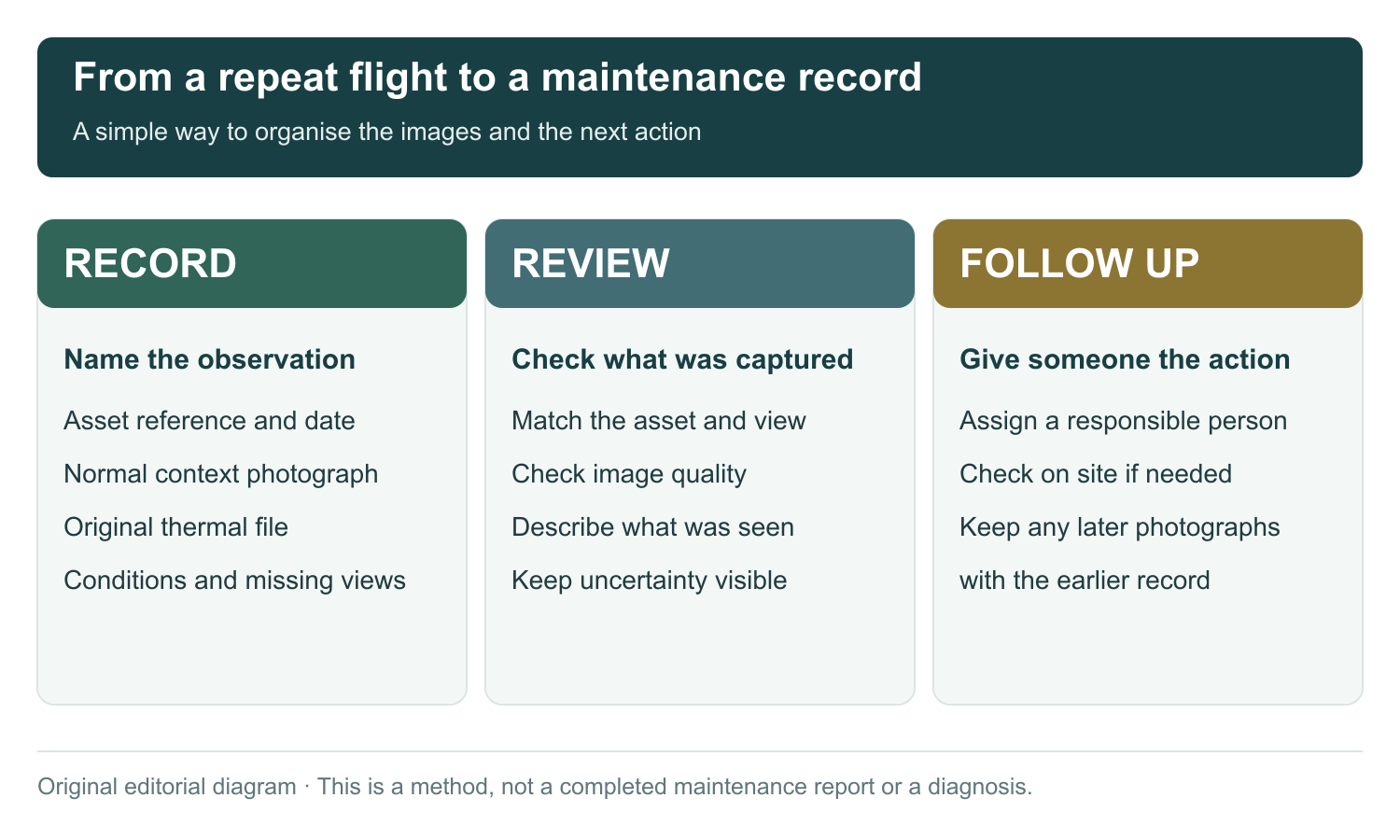
Give each observation its own short record: asset location, date, context photograph, thermal original, a plain description of what was seen and the person responsible for the next action. If a view was blocked or blurred, flag it and arrange another capture rather than leaving a gap unexplained.
Group observations by the follow-up the reviewer has chosen: check on site, repeat the photograph or keep watching. Keep the original files available beside the summary, so another person can review them without relying on a coloured screenshot alone. That turns a repeated flight into a record the maintenance team can act on.
If you also need a map or a reconstructed model, agree that output separately and check the intended processing tools with sample files. A folder of inspection images is not automatically a finished map.
For normal site photographs without thermal data, see the 4D visual-inspection setup.
View DJI FlightHub 2 software →
Plan your repeat thermal inspections
Tell us the assets, how often they need checking, the observation conditions and who reviews the files. Include the site’s power, network and access arrangements.
Discuss your inspection setup →Sources
DJI documents and image credits
- DJI Matrice 4 Series FAQ · Checked 14 November 2026.
- FlightHub 2: Single-Dock Plans · Checked 14 November 2026.
- FlightHub 2: aircraft status and live view · Checked 14 November 2026.
- DJI Dock 3 / Matrice 4D Series specifications · Checked 14 November 2026.
- DJI Dock 3 FAQ · Checked 14 November 2026.
Image sources and permissions are credited beside each image.
Independent research: published photovoltaic thermal example
Leave a comment